Deposits with your own PayFast or Yoco account
Take a deposit when someone books.
Deposits are paid straight into your own PayFast or Yoco merchant account. Cyber Circuit never holds your money.
1. Add your merchant keys
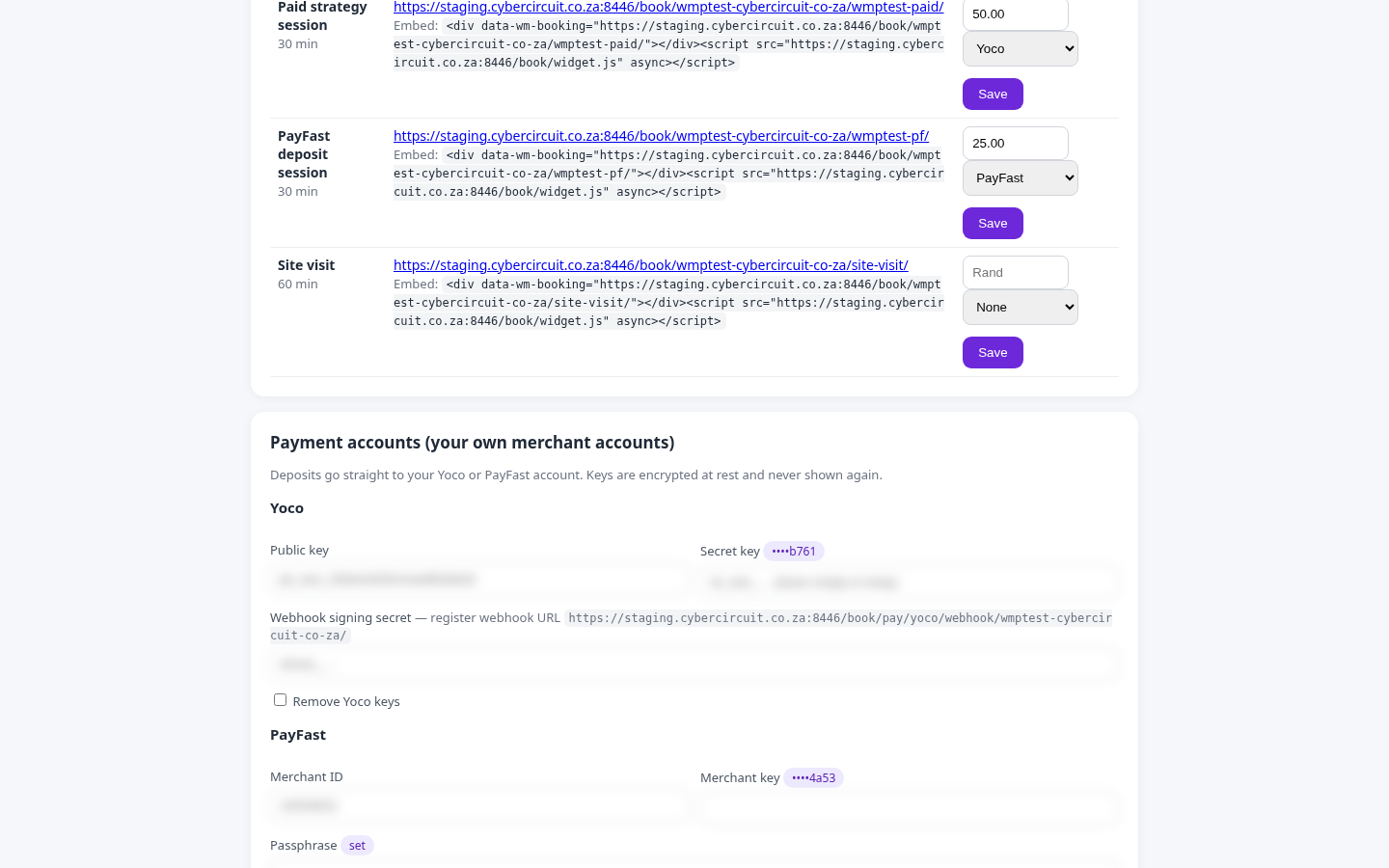
- In webmail open Bookings and scroll to Deposits & payments.
- Yoco: paste your public key and secret key from the Yoco portal (Sales › Payment Gateway › API keys). Copy the webhook URL shown, register it in Yoco, and paste the webhook signing secret.
- PayFast: enter your merchant ID, merchant key and passphrase (PayFast › Settings › Developer Settings).
- Save. Keys are encrypted and never shown again; use “Remove keys” to clear them.
2. Set a deposit per page
In Bookings, click Deposit on the page, enter the amount in Rand, choose Yoco or PayFast, and click Save deposit.
What happens
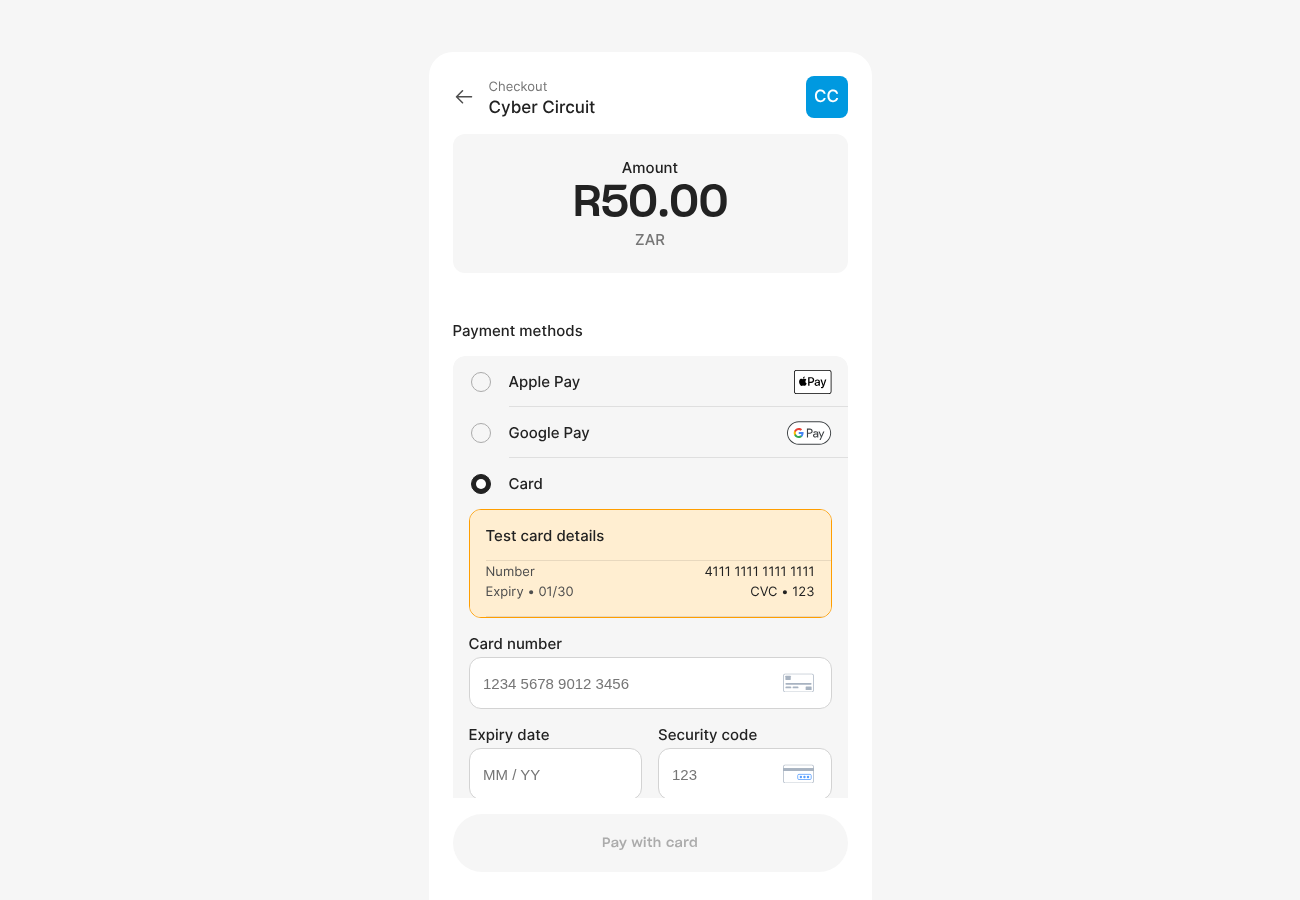
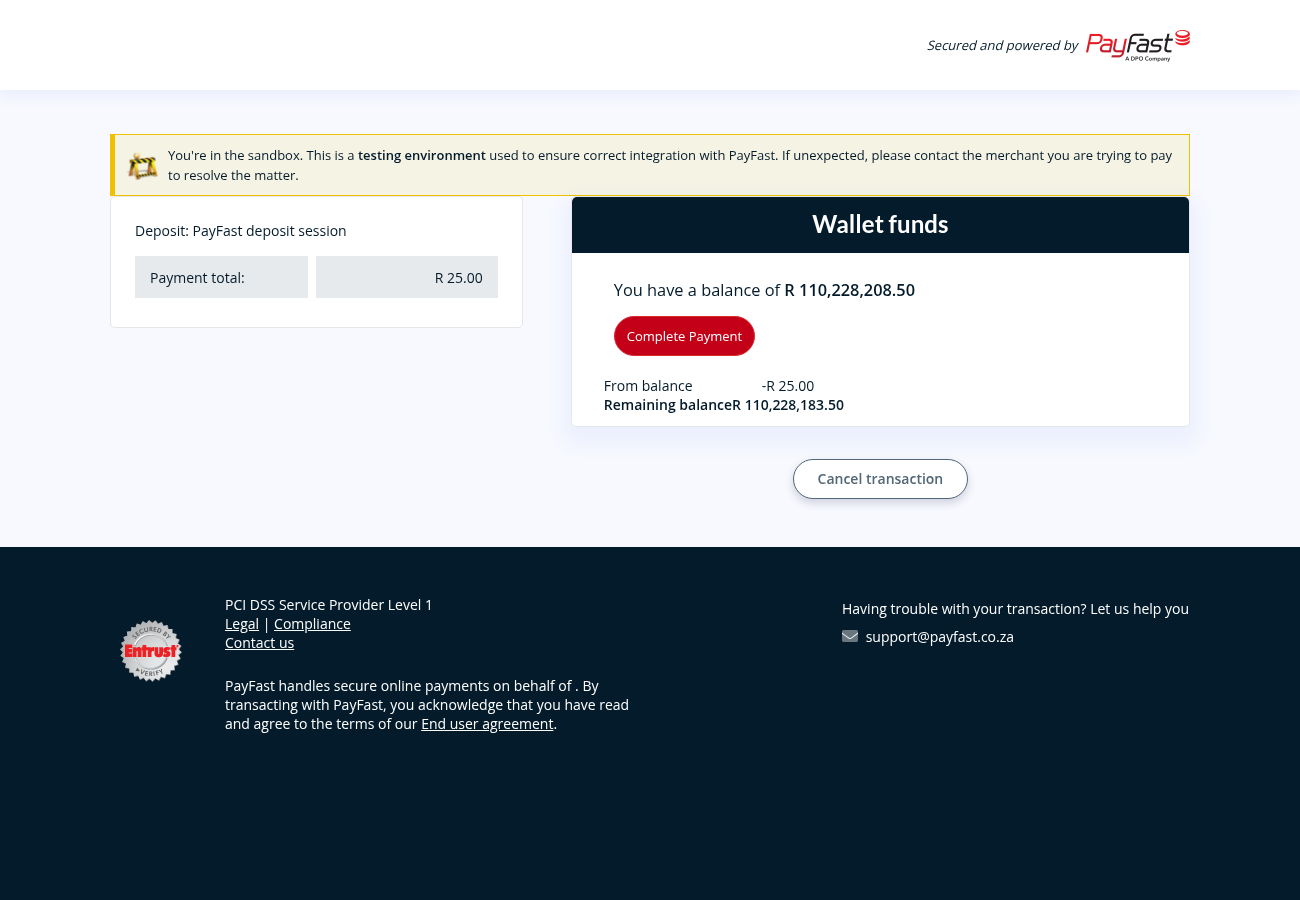
- The customer picks a time and is sent to the secure Yoco or PayFast payment page.
- The slot is held while they pay. Unpaid bookings are released automatically after the hold time.
- When payment succeeds the booking is confirmed and your calendar event changes from tentative to confirmed.
Note: Refunds are done in your Yoco or PayFast dashboard.