Online booking pages
Create booking pages, set availability and share your link.
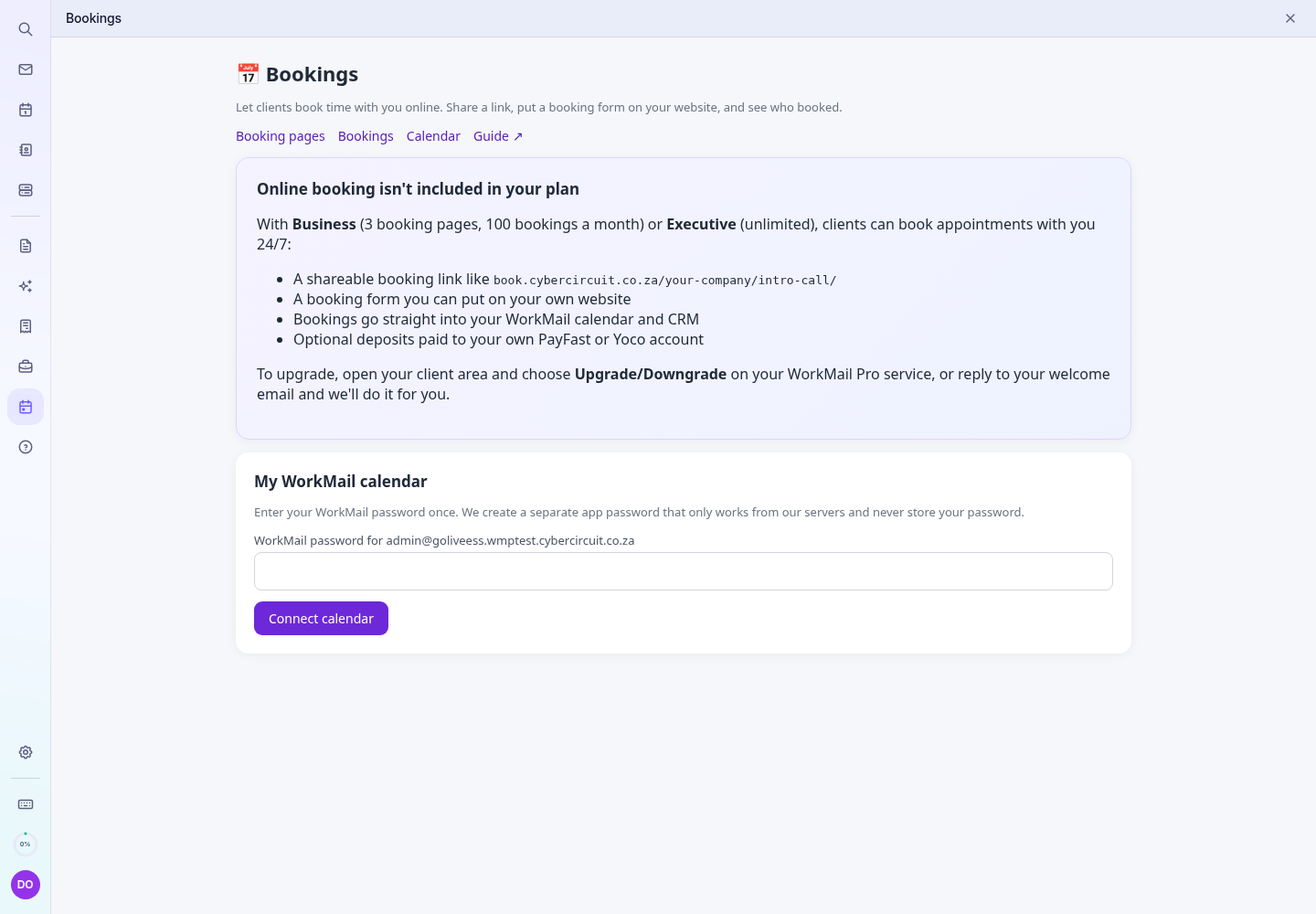
Online booking is included on the Business (3 pages, 100 bookings a month) and Executive (unlimited) booking plans.
Open Bookings
- In webmail, click Bookings (calendar icon) in the left rail.
- The first time, sign in with your email address and password.
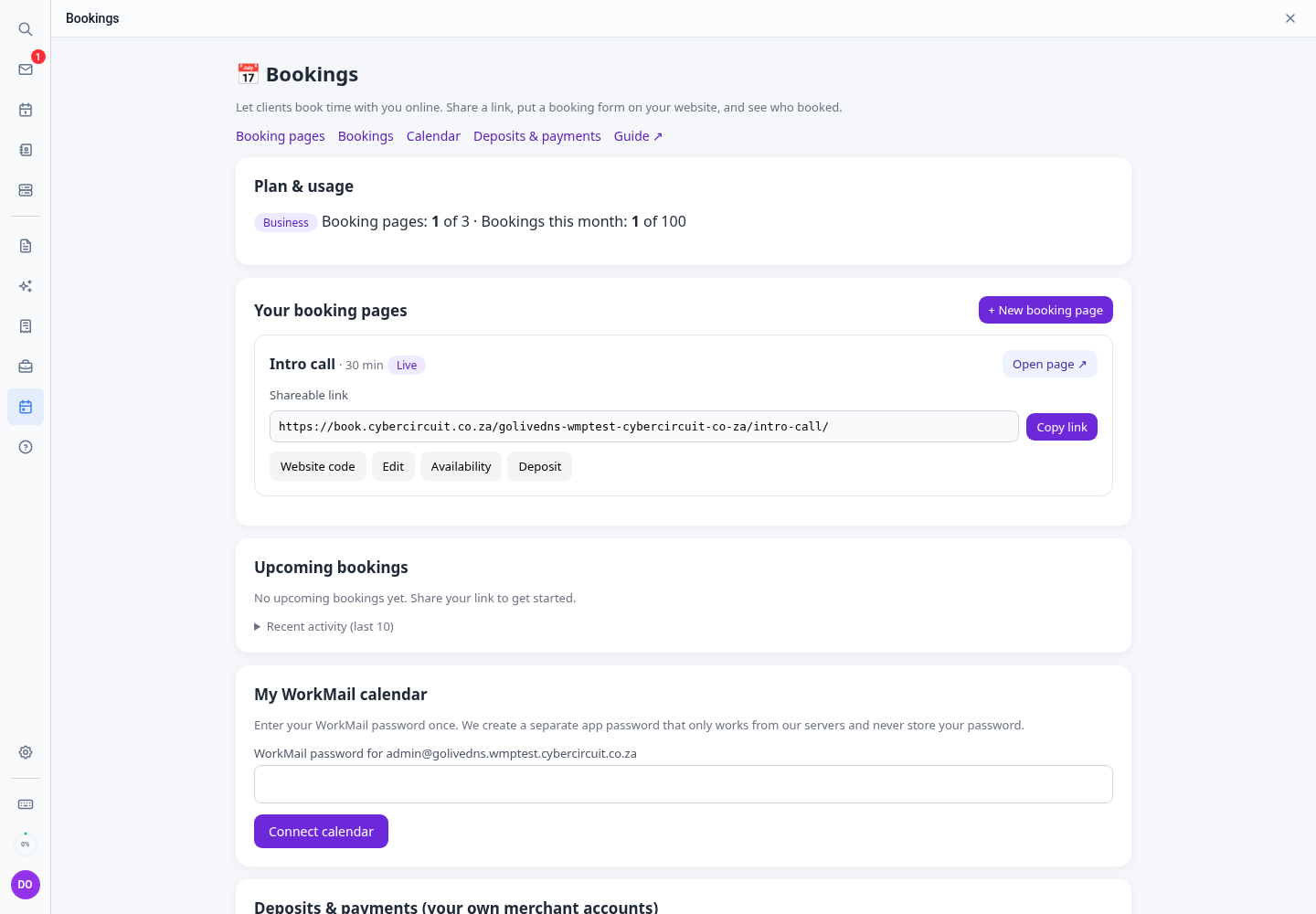
Create a booking page
- Click + New booking page.
- Enter a name clients will see (e.g. “30-minute consultation”), the duration and, optionally, a short description.
- Click Create page. It starts with Mon–Fri 09:00–17:00 availability and is live immediately.
Edit a page
Click Edit on the page to change the name, duration or description, or untick Page is live to pause bookings. Extra options (questions, buffers, reminders) are under More options in CRM.
Availability and calendar sync
- Click Availability on the page, tick the days you can be booked and set the hours (SAST), then click Save availability.
- Under My WorkMail calendar, click Connect calendar once. Busy times in your calendar are then hidden from clients, and new bookings appear in your calendar.
See and cancel bookings
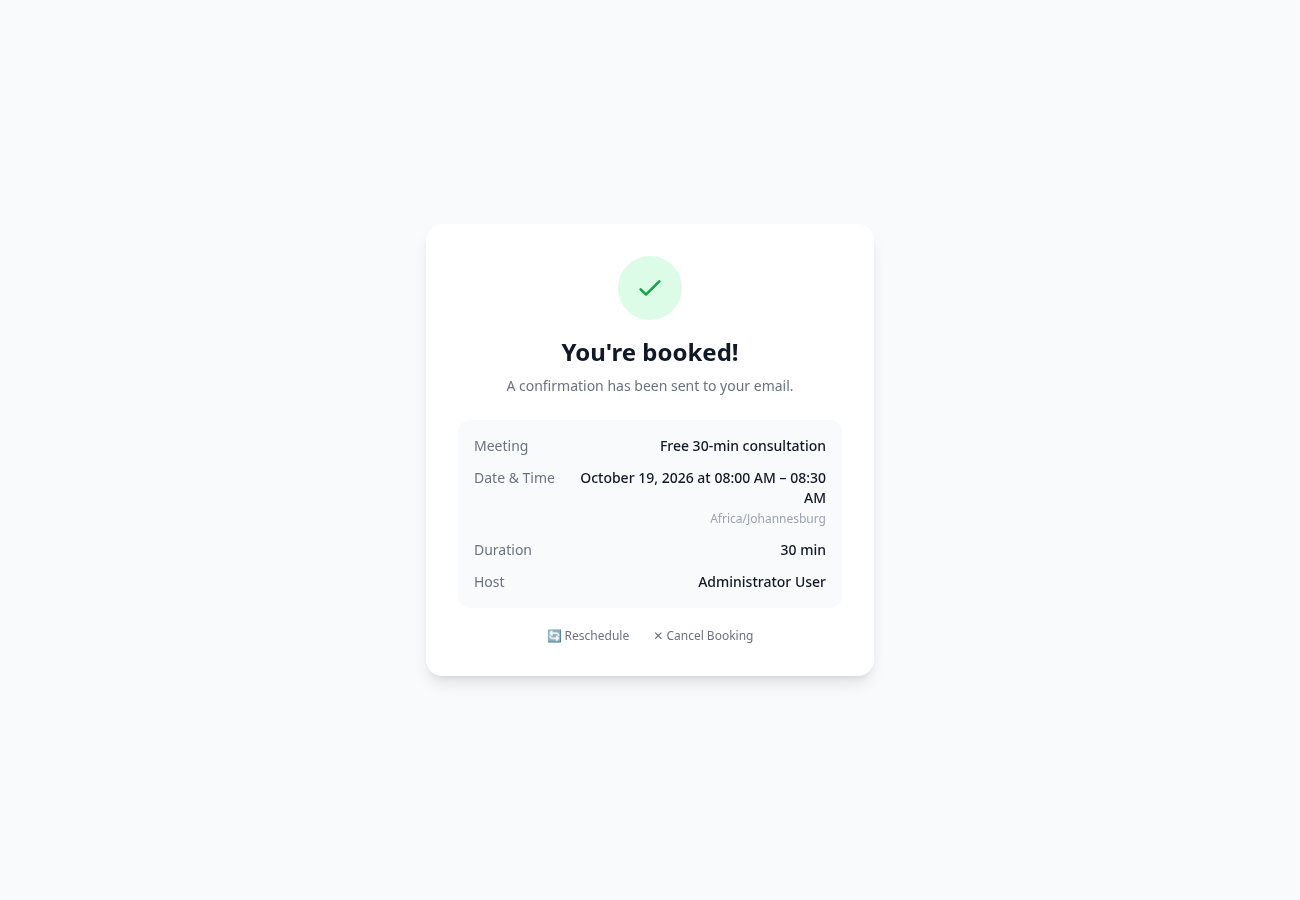
Upcoming bookings lists who booked, when and for which page. Click Cancel to cancel one. Clients can also reschedule or cancel from their confirmation.
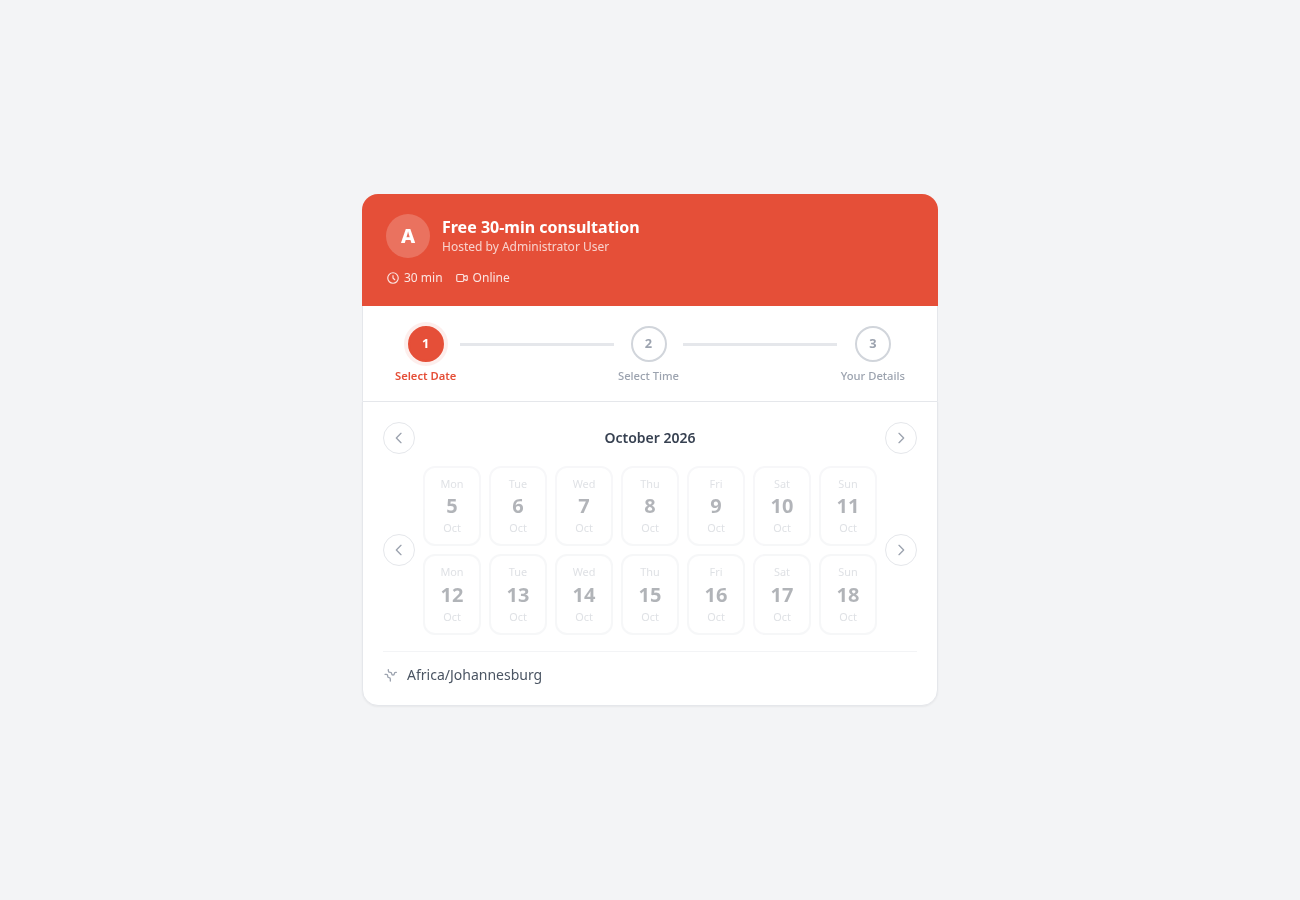
What your customers see
Essential plan