Create and send quotes and invoices
Build a PDF, convert quotes, email it.
Create a quote or invoice
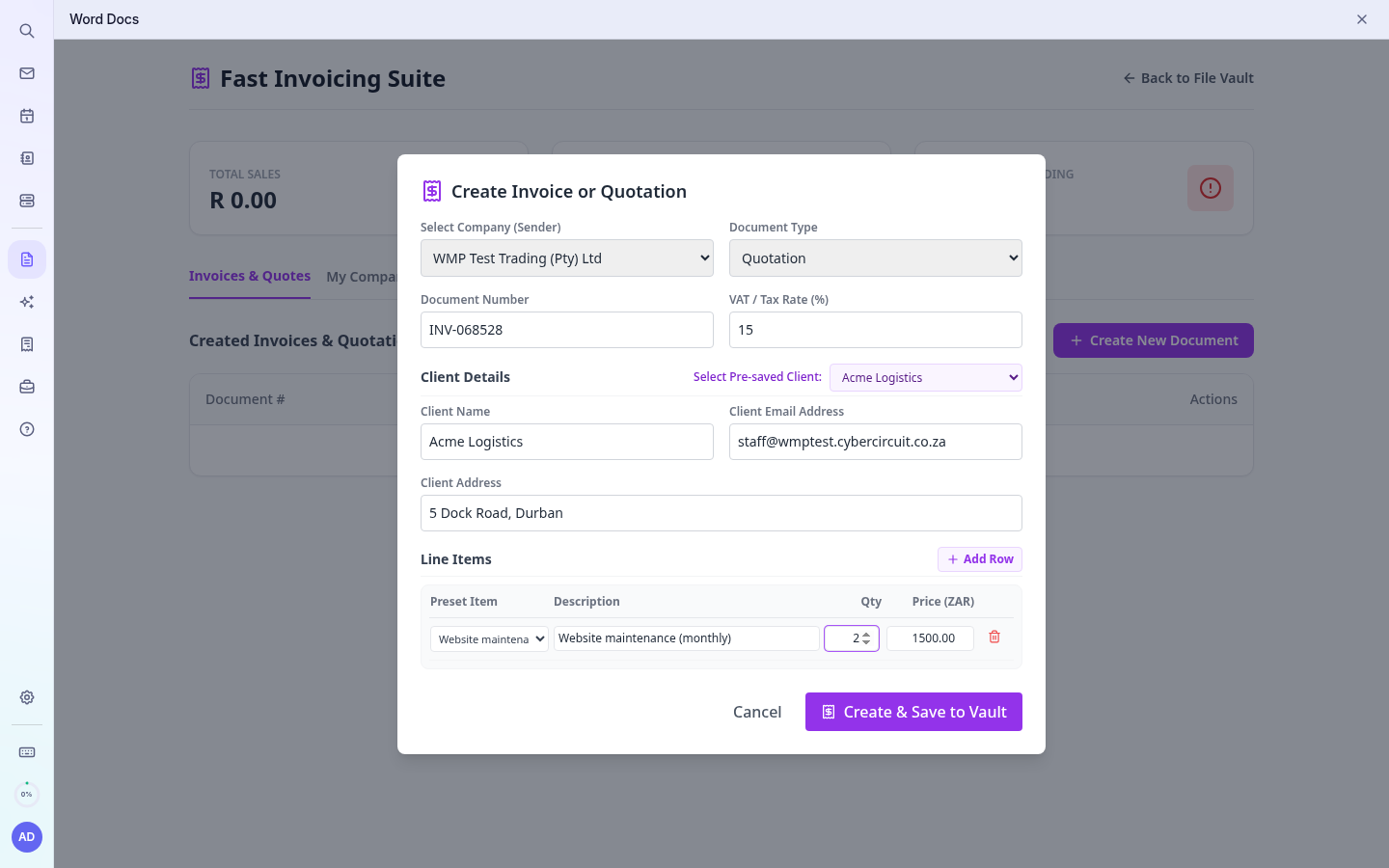
- Open Invoices & Quotes › Create New Document.
- Choose the company you bill from and the type: Invoice or Quotation. The number is filled in for you (INV- or QUO-) and can be changed.
- Pick a saved client or type the client details.
- Add lines: choose a saved item or type a description, quantity and price. Use + for more lines.
- Check the VAT rate (15% by default; set 0 if you are not VAT registered).
- Click Create & Save to Vault. The PDF is created and saved.
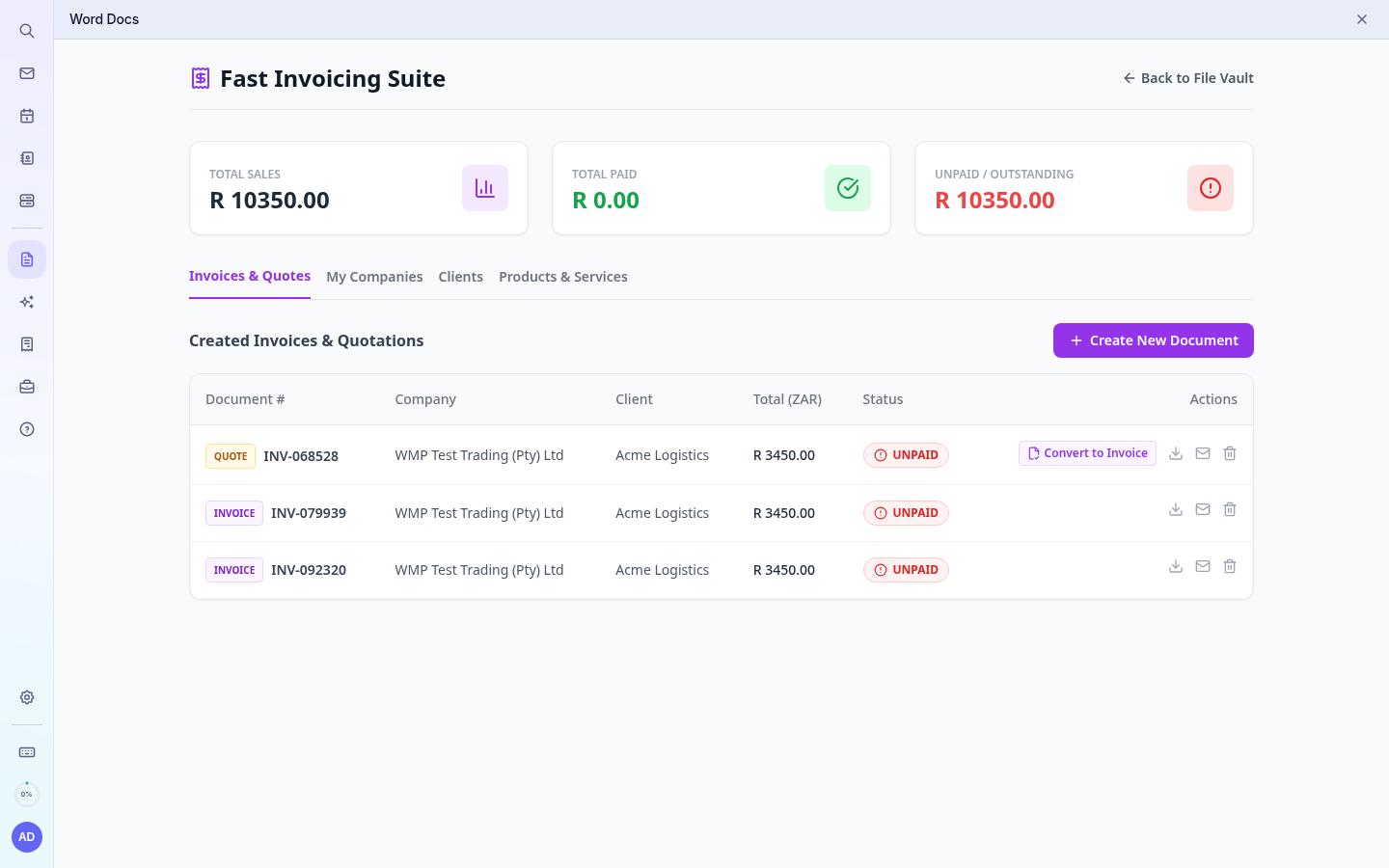
Convert a quote to an invoice
When the client accepts, click Convert to Invoice next to the quote, check the details and click Create & Save.
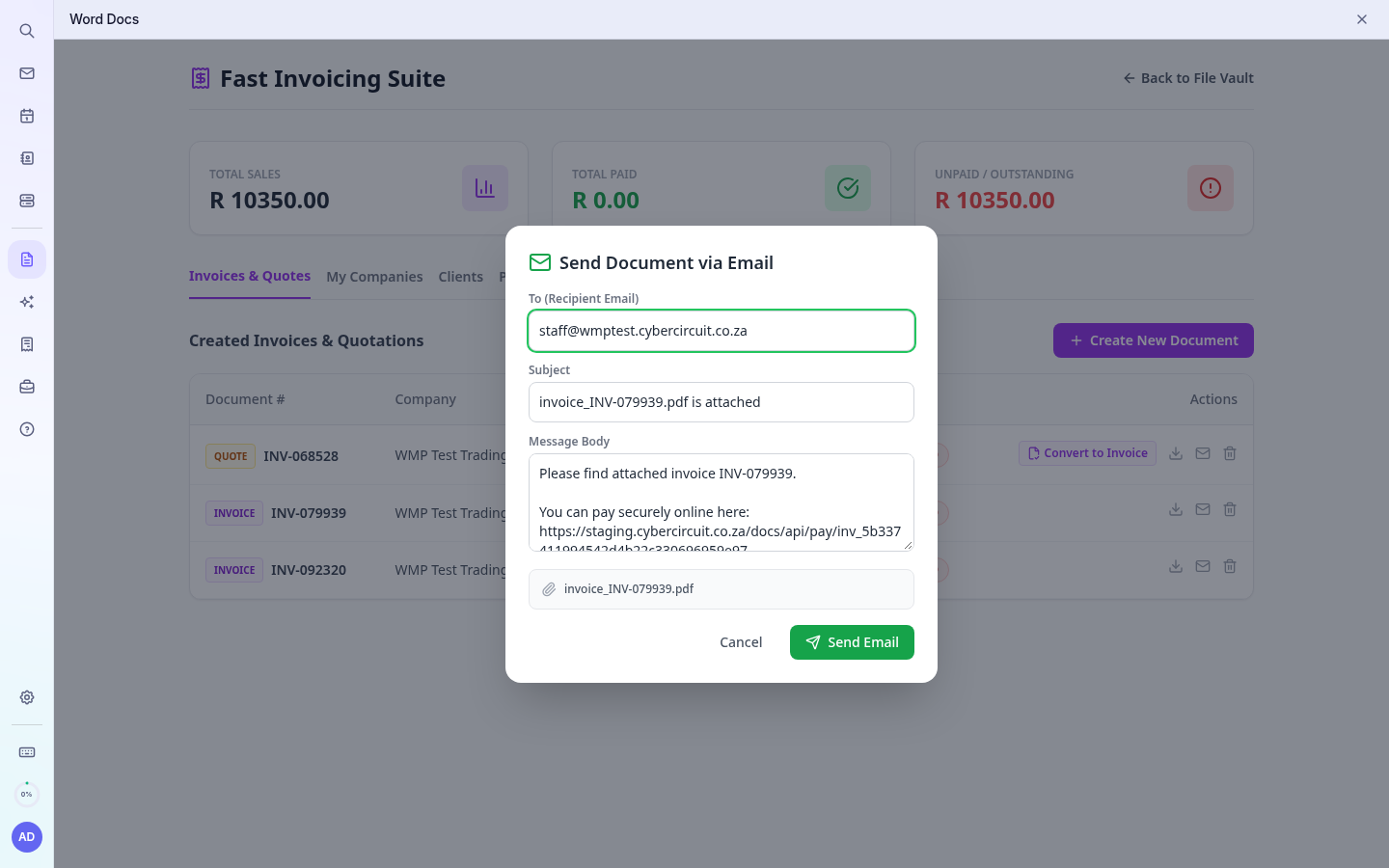
Email it
- Click the envelope icon next to the document.
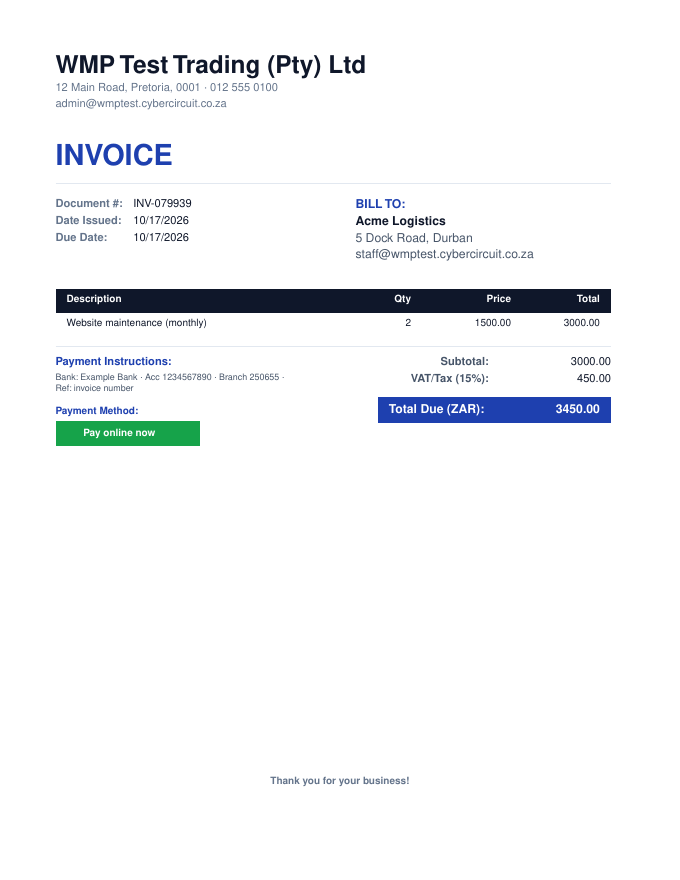
- Enter the client's email. The subject and message are filled in; invoices with online payment include the pay link.
- Click Send Email. It is sent from your own mailbox with the PDF attached.
Signature on a quote
To have a quote signed, go back to the file vault, open the Invoices & Quotes folder and click the pen icon on the quote PDF (see E-signatures).
Note: If sending fails with a message about SPF, your domain's DNS is not yet set up for sending. See Troubleshooting or contact support.