Get paid online with PayFast or Yoco
Pay-now button on every invoice.
Money goes straight into your own PayFast or Yoco account. Cyber Circuit never holds your money or sees card details.
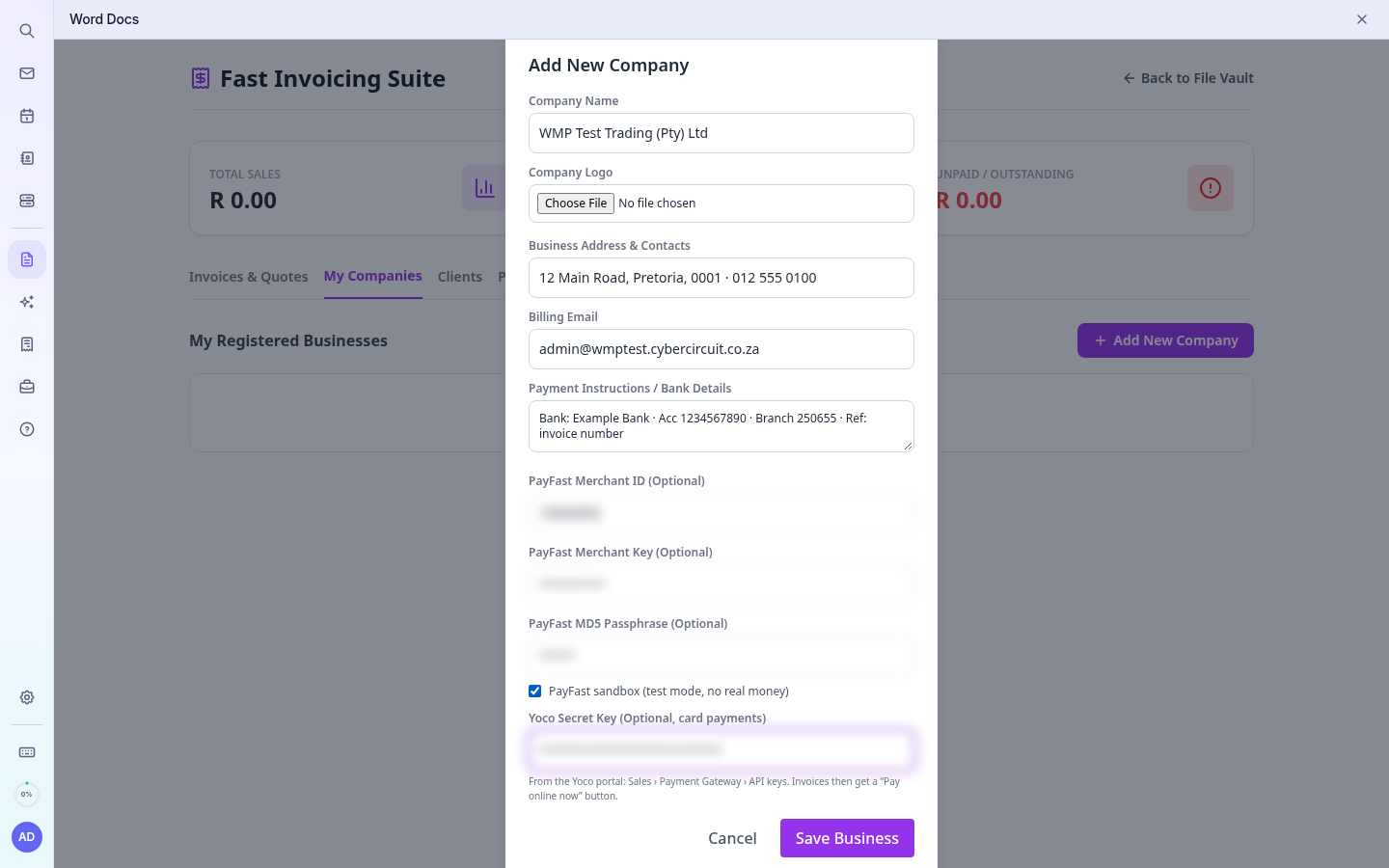
Add your details
- Open My Companies and edit your business.
- PayFast: enter your Merchant ID, Merchant Key and Passphrase (PayFast › Settings › Developer Settings). The passphrase must match exactly.
- Yoco: paste your secret key from the Yoco portal (Sales › Payment Gateway › API keys).
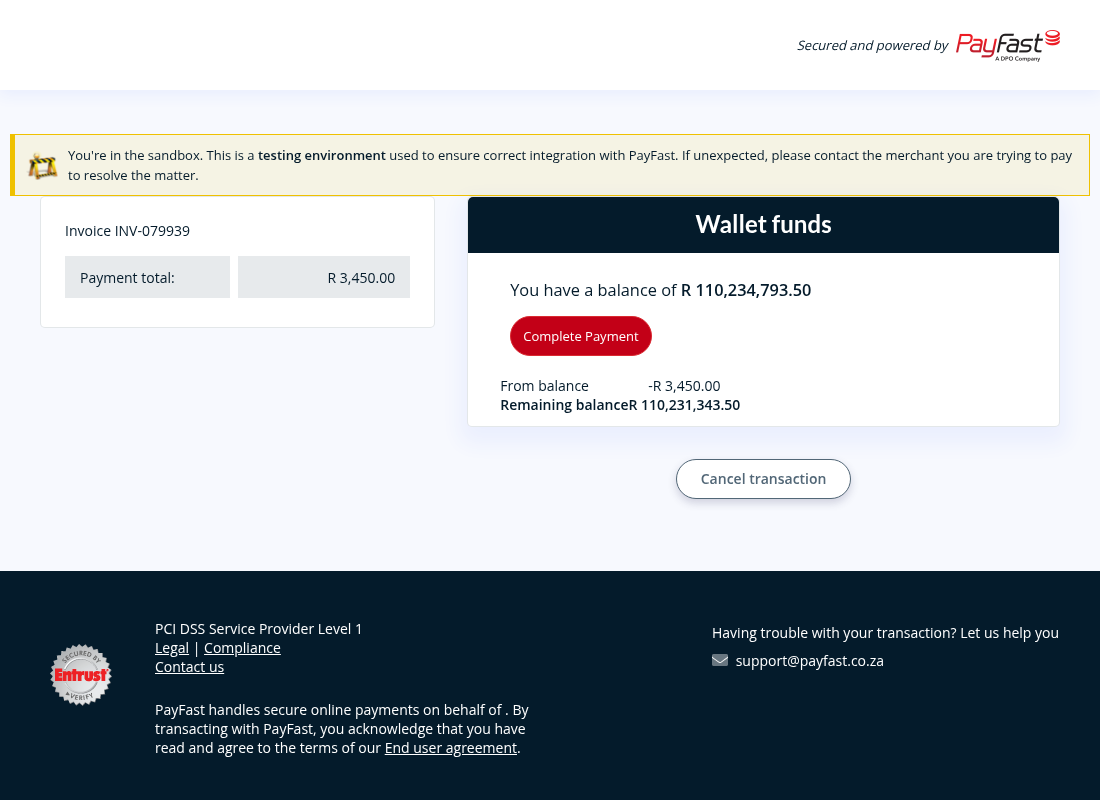
- Leave PayFast sandbox unticked for real payments. Tick it only to test with PayFast's sandbox details.
- Click Save Business.
Important: Treat these keys like passwords. Never send them by email or chat, including to support.
What your client sees
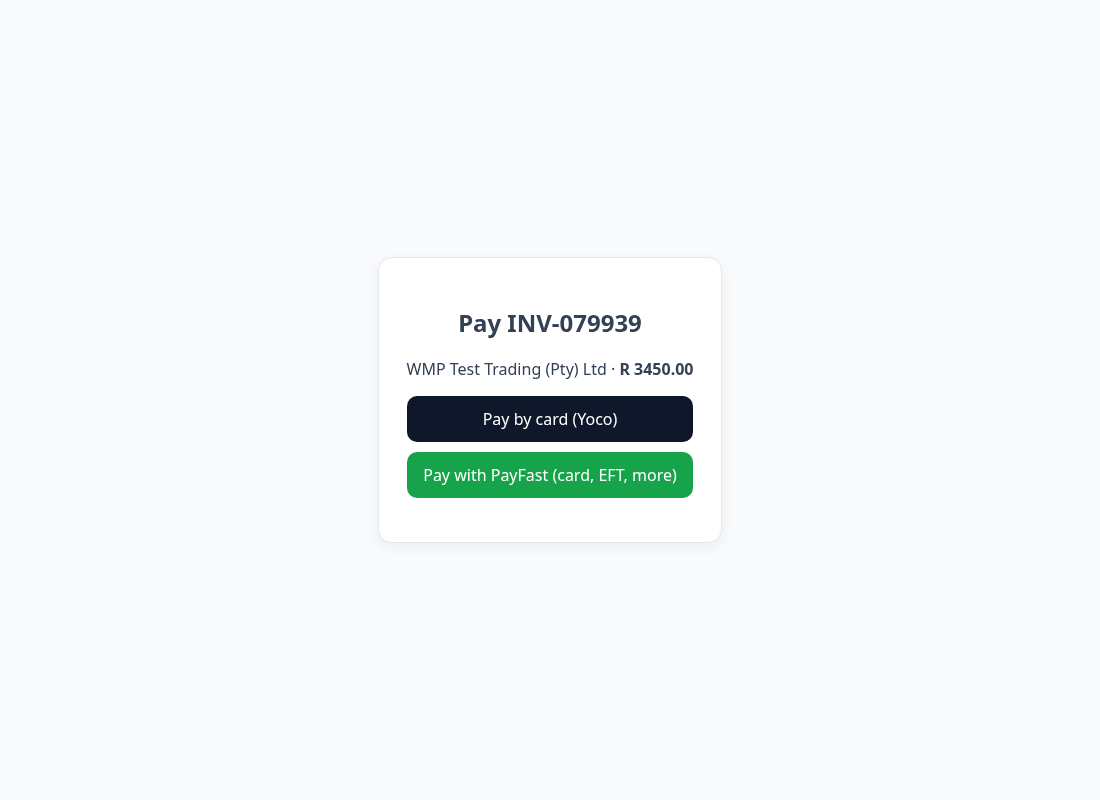
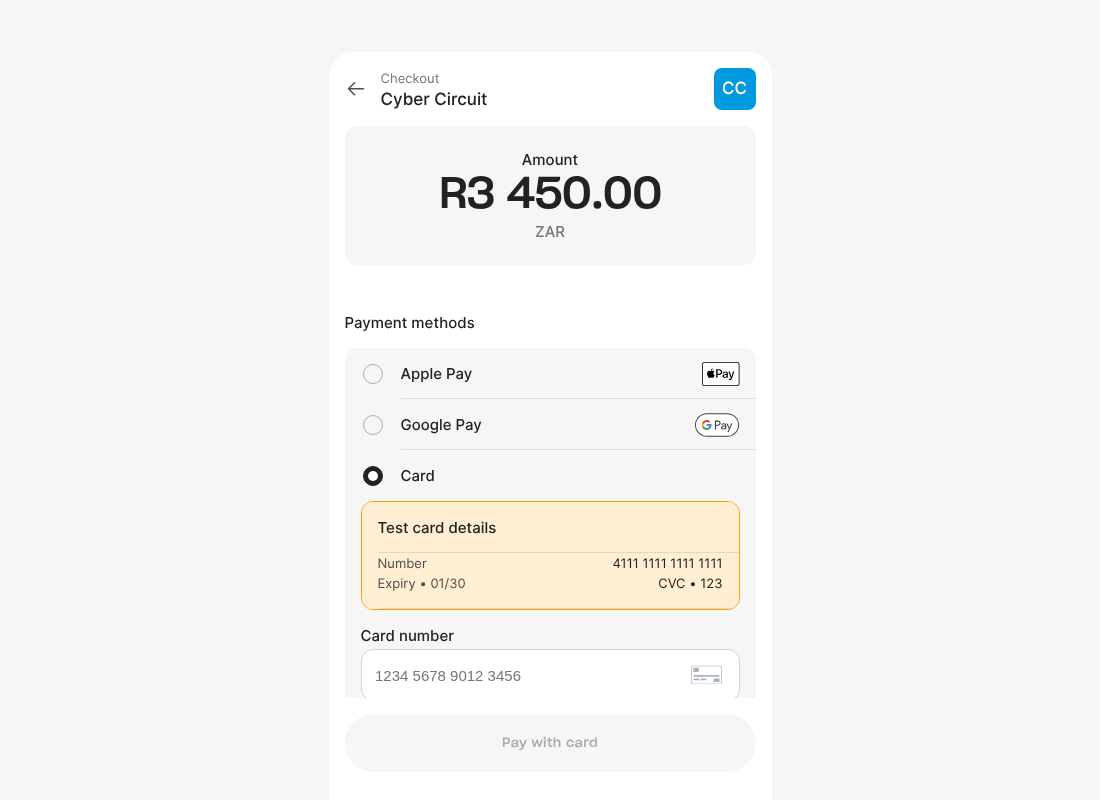
- The invoice PDF has a green Pay online now button and the email contains the pay link.
- If you added both PayFast and Yoco, the client chooses: card with Yoco, or PayFast (card, instant EFT and more).
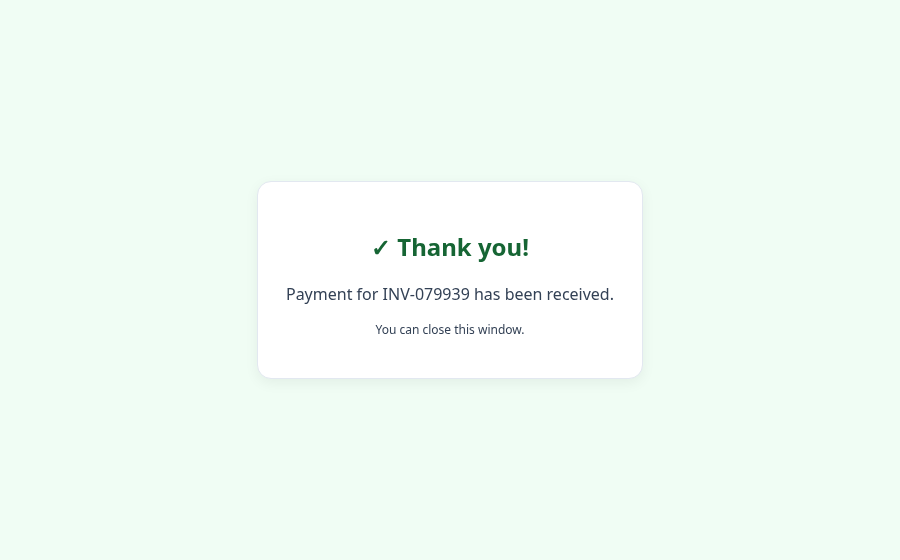
- After paying they see a thank-you page.
- Quotes cannot be paid online; convert them to an invoice first.
Note: Add your keys before creating the invoice. Invoices created earlier don't have the button on the PDF; create them again to include it.