Share your booking link, widget and email link
Put booking on your website and in your emails.
Copy the link
In Bookings, every page shows its Shareable link, for example https://book.cybercircuit.co.za/your-company/intro-call/. Click Copy link and share it on social media, in WhatsApp or in your email signature.
Put the booking form on your website
- In Bookings, click Website code on the page.
- Click Copy code.
- Paste it into your website where the form should appear (see below).
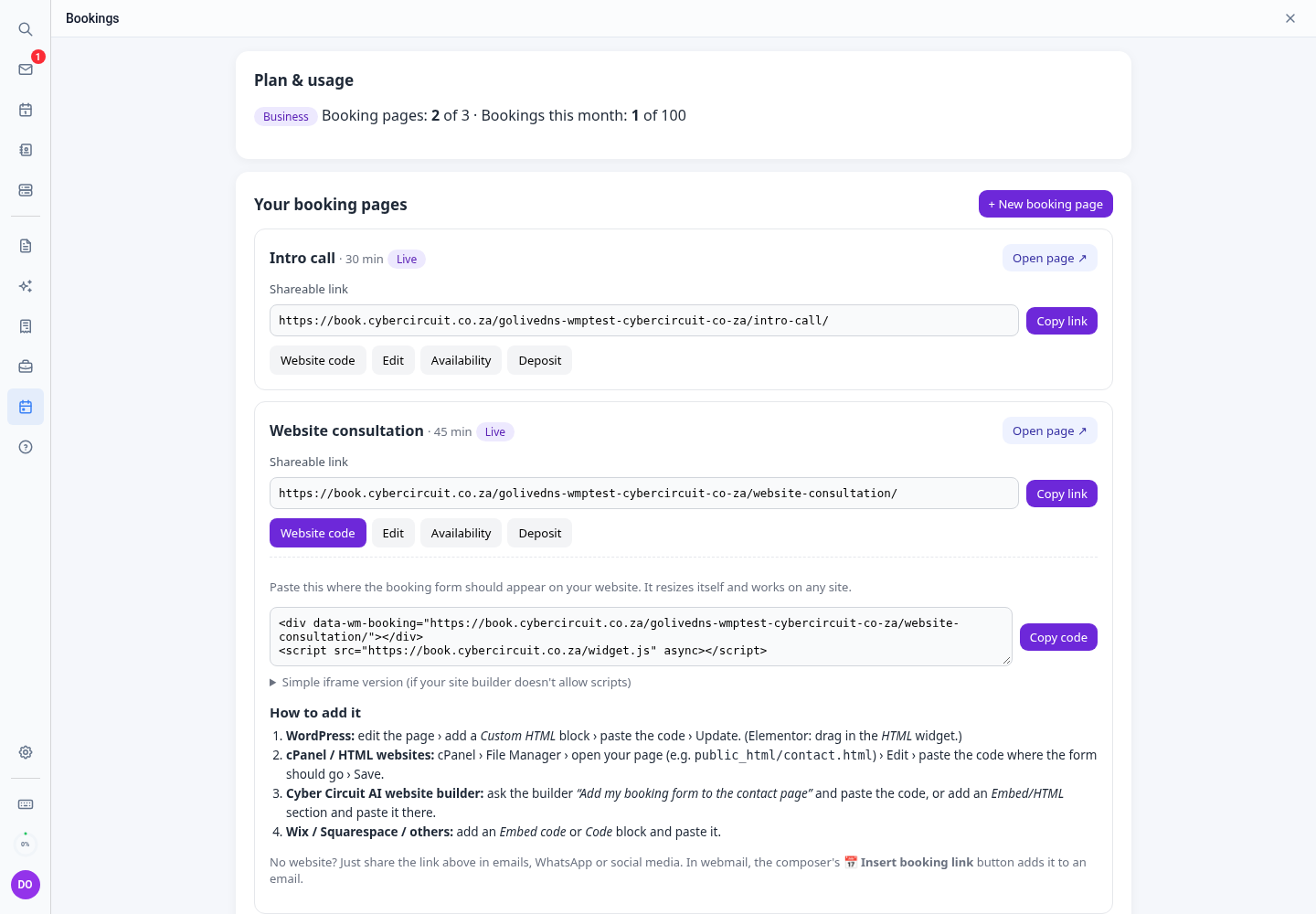
<div data-wm-booking="https://book.cybercircuit.co.za/your-company/intro-call/"></div>
<script src="https://book.cybercircuit.co.za/widget.js" async></script>
- WordPress: edit the page › add a Custom HTML block › paste › Update. (Elementor: the HTML widget.)
- cPanel / HTML websites: cPanel › File Manager › open the page (e.g.
public_html/contact.html) › Edit › paste where the form should go › Save. - Cyber Circuit AI website builder: ask it to “add my booking form to the contact page” and paste the code, or add an Embed/HTML section.
- Wix, Squarespace and others: use an Embed code block.
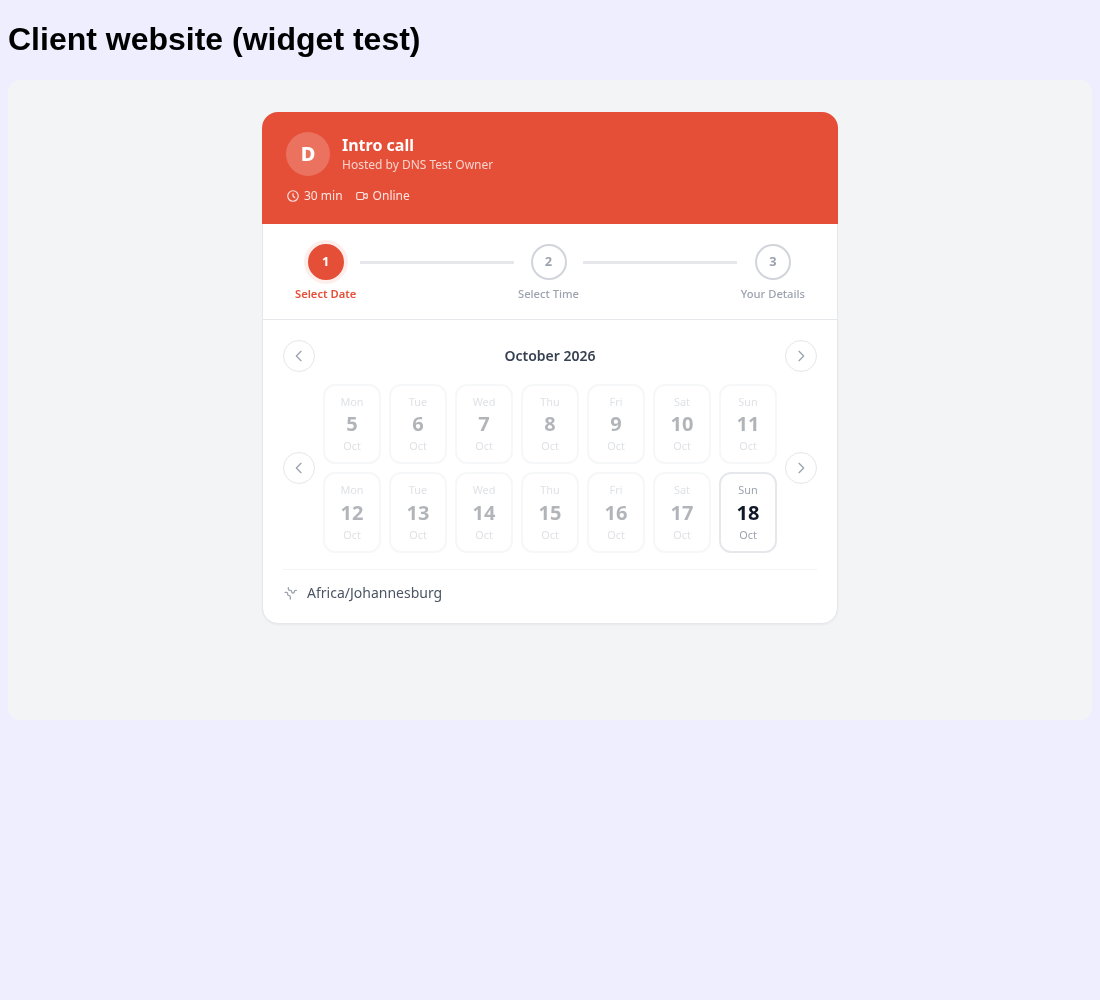
The form resizes itself to fit your page. If your builder doesn't allow scripts, use the Simple iframe version under the code.
Insert the link in an email
While composing, click 📅 Insert booking link in the AI Writing Assistant panel and pick the page. Or ask the AI Assistant: “Draft a reply to Lerato with my site-visit booking link.”